Image Format Converter, Explained
After reading this you will know which image format to pick for a given job, what a quality slider actually changes, and why the same picture can weigh 40 KB or 900 KB without looking any different.
What an image format converter does
An image is a grid of pixels. A 1920 by 1080 photo holds 2,073,600 pixels, and each pixel stores a colour. Storing every pixel literally is expensive: at 3 bytes per pixel (red, green, blue) that photo is 6,220,800 bytes, about 6.2 MB. A format is a set of rules for squeezing that grid into fewer bytes and for recording extras like transparency, colour profiles and animation.
Converting between formats means decoding the pixels from one set of rules and re-encoding them under another. The pixels can stay identical (PNG to PNG-like BMP) or get approximated to save space (PNG to JPEG). A single JPEG photo re-saved as PNG might grow from 180 KB to 1.4 MB with zero visible change, because PNG refuses to throw any pixel away while JPEG already did.
Lossless versus lossy, the one distinction that matters
Every format here falls into one of two camps.
- Lossless
- PNG, BMP, TIFF, GIF and ICO reproduce the original pixels exactly. Decode and re-encode a hundred times and byte 500,000 is unchanged.
- Lossy
- JPEG, WebP and AVIF discard detail the eye barely notices, then store the simplified result. Each re-save discards a little more.
Lossless formats shrink files by finding patterns: a run of 400 identical white pixels becomes a short instruction meaning "white, 400 times". This works beautifully on screenshots, logos and line art, where large flat regions repeat. It works poorly on photographs, where almost every pixel differs slightly from its neighbour.
Lossy formats attack the problem differently. They split the image into 8 by 8 blocks, describe each block as a sum of wave patterns, and drop the fine waves your vision ignores. A photo of a face compresses to 5 percent of its raw size with no obvious flaw. The same trick smears the crisp edges of text, which is why you never save a screenshot as JPEG.
What the quality slider actually controls
For JPEG, WebP and AVIF the quality value sets how aggressively the fine detail is thrown away. It is a number from 1 to 100, but it is not a percentage of anything physical. It scales a quantization table: the divisor applied to each frequency component before rounding.
Here C_{\text{original}} is one frequency coefficient of a block, Q is the quantization step derived from your quality setting, and C_{\text{stored}} is the rounded value actually saved. A high quality means small Q, so little rounding and little loss. A low quality means large Q: many coefficients round to 0 and vanish, which is exactly what shrinks the file.
Quality 100 is not lossless. It still rounds, just very gently. If you need the exact pixels back, use PNG, TIFF or BMP, not JPEG at quality 100.
A worked conversion
One photo, four formats
Take a typical 1920 by 1080 photograph and convert it four ways. The raw pixel data is 1920 \times 1080 \times 3 = 6{,}220{,}800 bytes. The table below shows realistic output sizes for this kind of content.
- Raw uncompressed size: 6.22 MB. This is the baseline every format is measured against.
- PNG (lossless): about 3.1 MB. Roughly a 2:1 saving from pattern matching, no detail lost.
- JPEG at quality 80: about 320 KB, a 19:1 saving versus raw. Detail loss is invisible at normal viewing distance.
- WebP at quality 80: about 240 KB, around 25 percent smaller than the JPEG for the same visual quality.
- AVIF at quality 80: about 150 KB, roughly half the JPEG size.
The pixels look the same in all four. The files differ by a factor of more than 20 because they make different promises about accuracy.
How quality trades against size
The relationship between quality and file size is not linear. Below quality 60 the file barely shrinks further because the important structure is already stored. Above quality 90 the file grows fast for gains you cannot see, because you are now spending bytes recording noise.
The widget lets you feel this curve. Watch how much size you save going from quality 95 to quality 80 (a lot) versus quality 80 to quality 65 (much less, with visible artifacts starting to appear).
Transparency, colour and animation
Format choice is not only about size. Some formats carry information others cannot.
Transparency (the alpha channel) survives in PNG, WebP, AVIF, GIF and TIFF. JPEG and BMP have no alpha channel at all, so converting a transparent PNG to JPEG forces every transparent pixel onto a solid background colour. If you do not choose that colour, you get an unexpected white or black fringe around logos.
GIF stores only 256 colours per frame and its transparency is 1-bit: a pixel is either fully opaque or fully clear, with no soft edges. A drop shadow that fades smoothly in PNG becomes a jagged outline in GIF. Animation lives in GIF and WebP; the other formats hold a single still frame.
| Format | Compression | Alpha | Colours | Animation |
|---|---|---|---|---|
| PNG | Lossless | Full 8-bit | 16.7M+ | No |
| JPEG | Lossy | None | 16.7M | No |
| WebP | Both | Full 8-bit | 16.7M | Yes |
| AVIF | Both | Full | 16.7M+ | Yes |
| GIF | Lossless | 1-bit | 256 | Yes |
| ICO | Lossless | Full | 16.7M | No |
Common mistakes
Re-saving a JPEG as JPEG loses quality every time, because each save quantizes again. Editing a photo across five saves at quality 80 can look worse than one save at quality 60. Keep a lossless master (PNG or TIFF) and export to JPEG only once, at the end.
Three other traps are worth naming. First, saving a screenshot or logo as JPEG: the block-based compression blurs sharp text edges, and the file is often larger than the PNG would have been. Second, converting a photograph to PNG expecting it to shrink: PNG cannot compress photographic noise, so the file usually grows. Third, forgetting the background colour when flattening transparency: pick it deliberately so cut-out edges do not fringe.
ICO deserves a note. It is a container for small icons, typically 16, 32 and 48 pixels square. Converting a 1920 by 1080 photo to ICO throws away almost all of it, because the icon must be tiny. Use ICO only for favicons and app icons.
Related tools
If your source is an iPhone photo in HEIC or HEIF, start with the HEIC to JPEG Converter, which handles that container first. For vector artwork, the SVG to PNG Rasterizer turns scalable graphics into pixels at any size, and the PNG to SVG Tracer goes the other way for flat logos. To embed a small image directly in HTML or CSS, the Image to Base64 tool produces a data URI.
Frequently asked questions
Which format gives the smallest file?
For photographs, AVIF is usually smallest, often half the size of a JPEG at matching quality. WebP sits in between. For flat graphics with few colours, PNG or GIF can beat all three because their compression suits repeated colours.
Does converting PNG to JPEG lose quality?
Yes. PNG is lossless and JPEG is lossy, so the conversion discards detail and cannot be perfectly reversed. Going back to PNG afterward will not restore what was thrown away.
Why did my transparent image get a white background?
You converted to JPEG or BMP, neither of which supports transparency. Every see-through pixel was painted onto a chosen background colour. Convert to PNG, WebP or AVIF to keep the alpha channel.
Is quality 100 the same as lossless?
No. JPEG, WebP and AVIF at quality 100 still round frequency coefficients, so a tiny amount of information is lost. Only PNG, TIFF and BMP guarantee the exact original pixels.
Are my images uploaded anywhere?
No. Every conversion runs locally in your browser, so the image data never leaves your device.
Related tools
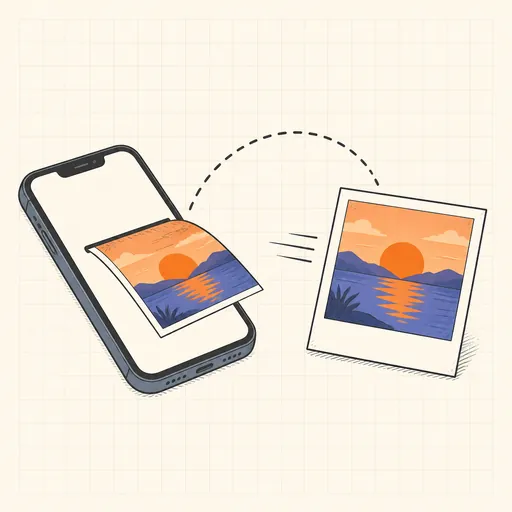
HEIC to JPEG Converter
Convert iPhone HEIC/HEIF photos to JPEG or PNG.
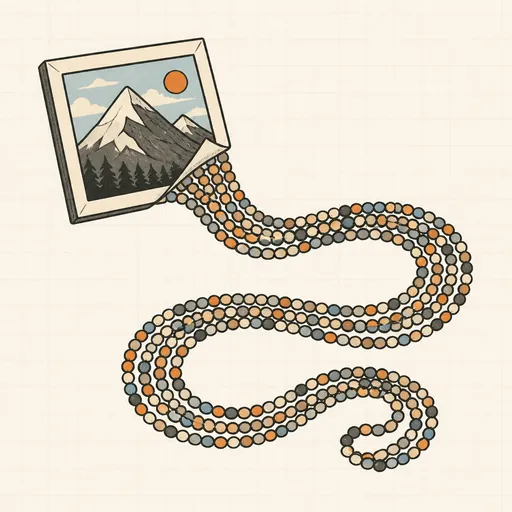
Image to Base64
Turn images into data URIs and back.
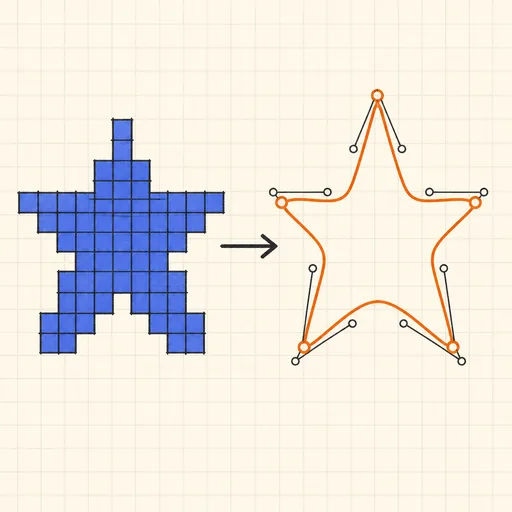
PNG to SVG Tracer
Trace a bitmap into a scalable SVG vector graphic.
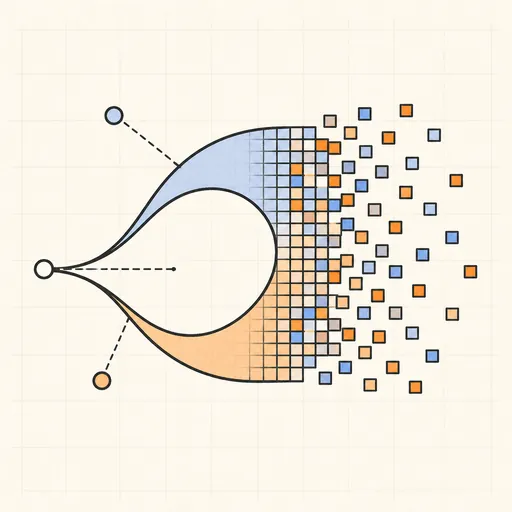
SVG to PNG Rasterizer
Render SVG vector graphics to PNG at any resolution.
EXIF Viewer & Remover
See and strip photo metadata: camera, GPS, dates.
Handwriting Font Maker
Turn your handwriting into a real font: print the template, write, photograph, download a TTF.