HEIC to JPEG, Explained
After reading this you will know what HEIC files hold, why iPhones save them, and exactly how converting to JPEG or PNG changes file size and image quality.
What HEIC is and why your iPhone uses it
HEIC is the file extension Apple uses for images stored in the HEIF container (High Efficiency Image File Format). Inside that container the pixels are usually compressed with HEVC, the same codec used for H.265 video. The short version: HEIC is a still image squeezed with video-grade compression.
The payoff is size. A photo that lands at roughly 2.5 MB as a JPEG often fits in about 1.2 MB as HEIC at similar visible quality. That is close to half the storage for the same picture. On a phone that holds thousands of photos, the saving is real.
The cost is compatibility. Many websites, older Windows machines, print kiosks, and email clients still cannot open a .heic file. Converting to JPEG or PNG trades some of the storage saving for a file that opens everywhere.
HEIC can also store extras that JPEG cannot: multiple frames for Live Photos, depth maps, and 10-bit color. When you convert to JPEG you keep the main still image at 8 bits per channel and drop those extras.
When to convert, and when not to
Convert to JPEG when you need to share a photo with something that cannot read HEIC: a web form, a document, a printer, a colleague on an old laptop. JPEG is the safest format for photographs because every device made in the last thirty years reads it.
Convert to PNG when the image has sharp edges, text, or flat color regions, such as a screenshot or a diagram. PNG is lossless, so it will not add the blocky artifacts JPEG creates around hard edges. The price is size: a PNG of a normal camera photo is often 3 to 5 times larger than the JPEG.
Do not convert if the destination already handles HEIC. Recent versions of macOS, iOS, Windows (with the HEIF extension installed), and many photo apps read it directly. Converting a well-compressed HEIC to JPEG usually makes the file larger, not smaller, and re-encoding never adds detail back.
The compression math, from first principles
JPEG throws away information you are unlikely to notice, then compresses what remains. The single most useful number to understand is the quality setting, a value from 1 to 100. It controls how aggressively the encoder rounds off high-frequency detail.
File size does not fall linearly with quality. A rough model for photographic content is:
Here S(q) is the file size at quality q, S_{100} is the size at quality 100, and p is an exponent near 1.5 to 2 for typical camera photos. The exponent varies with image content, so treat this as a guide, not a promise. The point it captures is that dropping from quality 100 to 90 saves far more than dropping from 60 to 50.
Perceived quality behaves in the opposite direction. Most viewers cannot tell quality 92 from quality 100 on a phone screen, but almost everyone sees the damage below about quality 60. The sweet spot for photographs sits between 80 and 90: near-invisible loss, large size savings.
Every JPEG save is lossy. If you plan to edit a photo across several sessions, keep the HEIC or export a PNG as your working copy, and produce the JPEG only as the final step.
A worked example using the demo photos
The demo loads a single HEIC photo at the default settings: output format JPEG, quality 90. Suppose the source HEIC is 1.20 MB and, when fully decoded, the image is 4032 by 3024 pixels (a 12-megapixel iPhone frame).
From 1.20 MB HEIC to a JPEG
- Decode the HEIC to raw pixels. At 4032 by 3024 that is
4032 × 3024 = 12,192,768pixels, or about 36.6 MB of uncompressed RGB (3 bytes per pixel). - Re-encode those pixels as JPEG at quality 90. For a typical outdoor photo this lands near 2.4 MB.
- Compare: the JPEG is about
2.4 / 1.20 = 2.0times the size of the HEIC. That is the compatibility tax you pay for a file that opens anywhere. - Now imagine choosing PNG instead. Lossless PNG of the same photo often runs 12 to 18 MB, roughly
15 / 1.20 = 12.5times the HEIC size, because photographic noise does not compress well without loss.
The lesson from the numbers: JPEG at quality 90 roughly doubles the HEIC size here, while PNG multiplies it by more than ten. For a camera photo, JPEG is almost always the right target.
How quality trades against size
The curve below applies the size model with S_{100} = 4.2 MB and p = 1.7 for the same 12-megapixel photo. Read it left to right: the steep drop between quality 100 and 85 is where you gain the most storage for the least visible loss.
Use the widget to feel this trade-off for yourself. Move the quality slider and watch both the estimated size and a plain-language quality note change together.
Reading the output and choosing settings
After conversion, judge three things. First, file size: for web use, aim under 500 KB per photo by lowering quality or resizing. Second, edges: zoom to 200% on text or a hard line; JPEG blocking shows there first. Third, color: JPEG uses 8 bits per channel, so a HEIC shot in 10-bit color loses some smoothness in gradients like clear skies.
| Goal | Format | Quality | Why |
|---|---|---|---|
| Email or web photo | JPEG | 80 | Small file, loss you will not notice on screen |
| Archive or print | JPEG | 92 | Near-lossless, still opens everywhere |
| Screenshot or diagram | PNG | n/a | Lossless, keeps text edges sharp |
| Photo with transparency | PNG | n/a | JPEG has no alpha channel |
Common mistakes
The errors below cost quality or file size without giving you anything back.
- Saving photos as PNG
- PNG is lossless, so a camera photo becomes 5 to 15 times larger than the JPEG with no visible gain. Reserve PNG for screenshots and graphics.
- Re-encoding at quality 100
- Quality 100 does not restore detail already lost in the HEIC. It only inflates the file. Quality 90 to 92 gives the same look at a fraction of the size.
- Converting again and again
- Each JPEG save discards a little more. Convert once from the HEIC original; do not convert a JPEG back and forth.
- Expecting Live Photo motion
- JPEG holds one still frame. The short video and depth data in a Live Photo are dropped during conversion.
Converting to JPEG strips most metadata handling to the encoder's defaults. If you need to keep GPS coordinates or capture time, confirm your target app reads the EXIF block, because some conversions discard it.
Related tools on this site
If your source is not HEIC, or your target is not JPEG or PNG, the Image Format Converter handles PNG, JPEG, WebP, AVIF, GIF, BMP, TIFF, and ICO. To turn a vector drawing into pixels, use the SVG to PNG Rasterizer. To go the other way and trace a bitmap into vectors, see the PNG to SVG Tracer. To embed a small image directly in HTML or CSS, the Image to Base64 tool produces a data URI.
Frequently asked questions
Why is my JPEG bigger than the original HEIC?
Because HEIC uses stronger compression than JPEG. A 1.2 MB HEIC often becomes a 2.4 MB JPEG at quality 90. That extra size is the cost of a format every device can open. Lower the quality to 80 to bring it closer to the original size.
Does converting reduce image quality?
JPEG is lossy, so yes, a little. At quality 90 the loss is hard to see on screen. Below quality 60 you will notice blocking around edges. PNG is lossless and adds no new loss, but the file is much larger.
Are my photos uploaded anywhere?
No. The decoder (libheif compiled to WebAssembly) downloads once from a CDN when you drop the first file, then all decoding runs on your device. Your images never leave your browser.
Can I convert several photos at once?
Yes. Drop multiple HEIC files and each is decoded and re-encoded with the same format and quality settings.
Should I stop my iPhone from shooting HEIC?
Only if you constantly share to devices that cannot read it. In your camera settings you can switch to "Most Compatible" to shoot JPEG directly, but you will use roughly twice the storage per photo.
Related tools
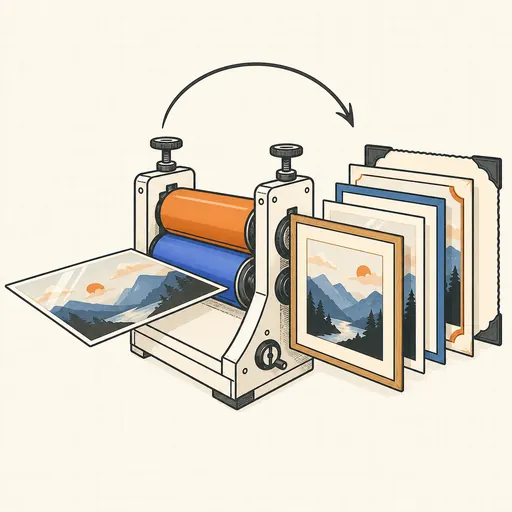
Image Format Converter
Convert between PNG, JPEG, WebP, AVIF, GIF, BMP, TIFF and ICO.
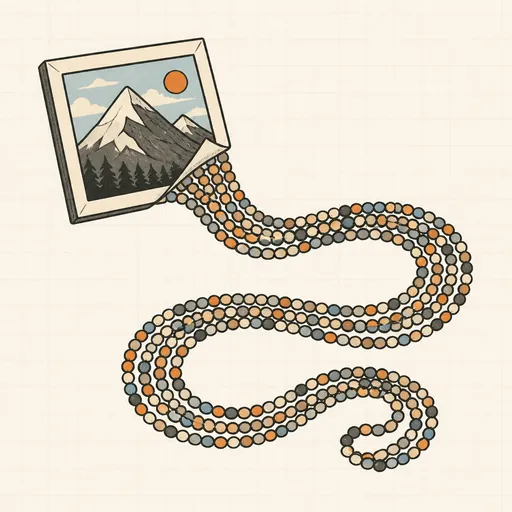
Image to Base64
Turn images into data URIs and back.
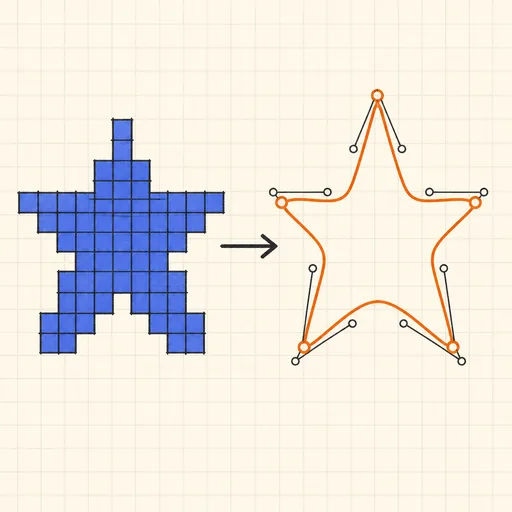
PNG to SVG Tracer
Trace a bitmap into a scalable SVG vector graphic.
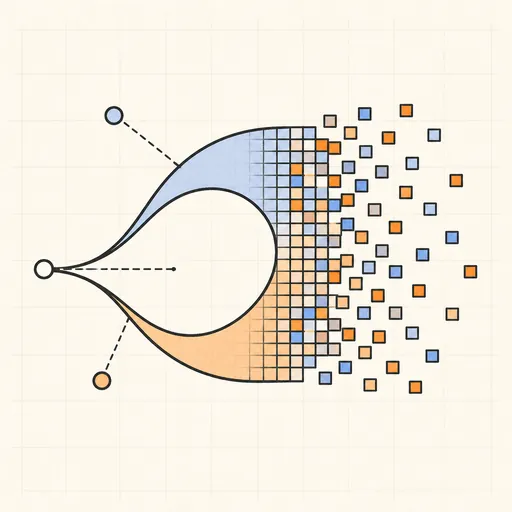
SVG to PNG Rasterizer
Render SVG vector graphics to PNG at any resolution.
EXIF Viewer & Remover
See and strip photo metadata: camera, GPS, dates.
Handwriting Font Maker
Turn your handwriting into a real font: print the template, write, photograph, download a TTF.