Image Resizing, Explained
After reading this you will know how to pick target dimensions for an image, predict the output file, and avoid the blur and stretch that ruin a resize.
Resizing an image changes how many pixels it contains. A photo that is 4000×3000 pixels holds 12 million samples of color. Ask for a 800×600 copy and the resizer must decide, for each of the 480,000 output pixels, what color it should be given the 12 million inputs. That decision is called resampling, and the quality of the copy depends almost entirely on how it is made.
Here is the hook. Shrink that 12-megapixel photo to a 800-pixel-wide thumbnail and you throw away roughly 96 percent of the pixels. Do it with a good filter and the thumbnail looks crisp. Do it badly, by keeping every fifth pixel and dropping the rest, and thin lines flicker and vanish. Same target size, very different result.
What resizing actually does
An image is a grid of pixels. Resizing produces a new grid with a different width and height. Because the two grids rarely line up, output pixels fall between input pixels, so the resizer estimates each output color from nearby inputs. This estimation is resampling.
This tool uses Lanczos resampling, a windowed sinc filter that weights each nearby input pixel by a smooth function of its distance. For downscaling it averages many inputs into one output, which suppresses noise and aliasing. For upscaling it interpolates smoothly, which avoids blocky edges but cannot add detail that was never captured.
Enlarging cannot invent detail. A 200×200 logo scaled to 800×800 has four times the pixels but the same information, spread thinner. If you need genuine enlargement with edge reconstruction, use the Image Upscaler.
When to resize, and when to reach for another tool
Resize when you want exact output dimensions: a 1200-pixel-wide blog image, a 512×512 avatar, a batch of product shots all capped at 2000 pixels on the long edge. Resizing changes pixel count.
Do not resize when your real goal is a smaller file at the same dimensions. That is compression, and it works by discarding color precision rather than pixels. Use the Image Compressor for that. Do not resize when the shape is wrong and you want to keep pixels at full resolution: cropping removes edges without shrinking what remains, and the Aspect-Ratio Crop handles that. Resizing, compressing and cropping solve three different problems and are often used together.
The aspect ratio math
Aspect ratio is width divided by height. To keep an image from stretching, both dimensions must scale by the same factor.
Here s is the scale factor, W_\text{in} and H_\text{in} are the original width and height in pixels, and W_\text{out} and H_\text{out} are the target width and height. If you set only a target width, the resizer computes the height so this equation holds:
A "longest edge" limit is the same idea applied to whichever side is larger. If the long edge is the width, s = L / W_\text{in} where L is the limit; if the height is longer, divide by H_\text{in} instead. This gives one rule that fits both portrait and landscape images into the same bounding box.
Pixel count scales with the square of s, not with s itself. Halving both dimensions (s = 0.5) leaves 0.5^2 = 0.25, so a quarter of the pixels remain. This square relationship is why cutting the width from 4000 to 1000 removes far more than three quarters of the data.
A worked example
Fitting a 4000×3000 photo to a 1000-pixel long edge
Take a landscape photo at 4000×3000 and cap the longest edge at 1000 pixels, which is the default sample the demo loads.
- The width
4000is the longer side, so the scale factor is s = 1000 / 4000 = 0.25. - Apply it to the height: H_\text{out} = 3000 \times 0.25 = 750. The output is
1000×750. - Check the aspect ratio: 4000/3000 = 1.333 and 1000/750 = 1.333. They match, so no stretching.
- Count the pixels: input 4000 \times 3000 = 12{,}000{,}000, output 1000 \times 750 = 750{,}000. That is 0.25^2 = 0.0625, so 6.25 percent of the original pixels survive.
The resulting file is much smaller than a simple 6.25 percent, because JPEG size does not track pixel count linearly, but the pixel arithmetic above is exact and always reproducible.
See the square law move
Reading the output you get
Three numbers describe any resize result: the two output dimensions and the resulting file size. Check the dimensions first. If you asked for a 1000-pixel long edge and got 1000×750, the aspect ratio was preserved and the math above holds. If you asked for both a width and a height with ratio lock off, expect distortion whenever W_\text{out}/H_\text{out} differs from W_\text{in}/H_\text{in}.
File size is the noisy number. A downscaled JPEG usually shrinks more than the pixel ratio suggests, because fewer pixels also means fewer high-frequency details for the encoder to store. The 1000×750 copy above might land near 150 KB from a 5 MB original, a 97 percent reduction from a 94 percent pixel reduction. Do not treat file size as a fixed multiple of pixel count; it depends on image content and format.
For screen use, match the display. A typical laptop shows about 1500 usable pixels across a content column, so exporting images wider than 2000 pixels wastes bytes with no visible gain. Cap the long edge and stop there.
Common mistakes
- Upscaling and expecting sharpness
- Scaling
640×480up to1920×1440gives nine times the pixels and zero extra detail. The result looks soft because Lanczos interpolates existing samples; it does not reconstruct texture. - Disabling ratio lock by accident
- Setting both a width and a height with the lock off forces the exact box you typed. If
1000×1000is applied to a4000×3000photo, faces stretch vertically by (1000/750) \approx 1.33, a visible 33 percent distortion. - Resizing then resizing again
- Every resize resamples. Going
4000to1000and back to2000is not the same as going straight to2000; the intermediate step already discarded detail you cannot recover. Always resize once from the original. - Confusing pixels with physical size
- DPI or PPI does not change pixel count. A
1000×750image is1000×750whether tagged 72 or 300 DPI. The tag only affects how large it prints, not how many pixels the file holds.
Related tools
Resizing pairs naturally with the other tools in this category. When your dimensions are right but the file is still too large, run the output through the Image Compressor. When you need a specific favicon set from a single source, the Favicon Generator produces every required size in one pass so you do not resize by hand.
Frequently asked questions
Does resizing reduce image quality?
Downscaling with Lanczos loses detail you no longer have room for, but the visible result is usually clean because averaging many inputs into one output suppresses noise. Upscaling never adds real detail, so it looks softer than the original.
Can I resize a batch of images at once?
Yes. Drop several files and they all get the same rule (width, height, percentage, or longest-edge limit) applied, then download together as a ZIP. Each image keeps its own aspect ratio when the lock is on.
Will my images be uploaded anywhere?
No. Everything runs locally in your browser. The pixels never leave your device, which is why large batches are limited only by your own memory.
What is the difference between percentage and longest-edge modes?
Percentage scales both dimensions by a fixed factor, so 25% of 4000×3000 is 1000×750. Longest-edge fits any image inside a box regardless of orientation, so a 1000 limit gives 1000×750 for landscape and 750×1000 for portrait.
Why is my resized file bigger than I expected?
PNG stores lossless pixels, so a resized PNG of a photo can stay large. Convert photos to JPEG or WebP, or run them through a compressor, to see the file shrink in line with the smaller pixel count.
Related tools
Image Compressor
Shrink JPEG, WebP and PNG files with a live size preview.
Aspect-Ratio Crop
Crop images freely or locked to presets like 1:1 and 16:9.
Favicon Generator
Every favicon size plus manifest from one image.
Image Upscaler
Enlarge images 2-4x with Lanczos or pixel-art algorithms.
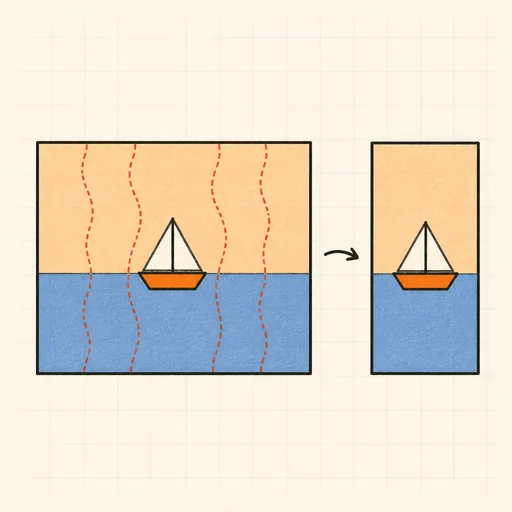
Seam Carving (Content-Aware Resize)
Shrink or stretch a photo without squashing it: remove the boring pixels, keep the subject.
EXIF Viewer & Remover
See and strip photo metadata: camera, GPS, dates.