Images to PDF, Explained
After reading this you will understand how a stack of JPG and PNG files becomes a single PDF, what page size and margins actually do to each image, and how to avoid quality loss and orientation surprises.
What this tool does
A PDF is a container. Each page holds a coordinate space measured in points, where one point is 1/72 of an inch. An image is a rectangular grid of pixels with no inherent physical size. The Images to PDF tool takes each image you drop in, creates one page, and places the image inside that page according to the page size, orientation and margins you pick.
The useful trick is that JPEG and PNG data can live inside a PDF unchanged. A PDF page can reference an image stream that is byte-for-byte the same JPEG you started with. So bundling 12 photos into a PDF does not re-compress them, and the file size is roughly the sum of the originals plus a small structural overhead.
Here is a concrete hook. Suppose you have three receipts scanned as JPEGs, each about 400 KB. Dropping them in and choosing A4 pages gives you a single PDF of roughly 1.2 MB with three pages, ready to email. No printer, no scanner software, no upload.
When to use it, and when not to
Reach for this tool when you have images and need one document: scanned receipts, photos of a signed contract, screenshots for a report, a set of diagrams. PDF is the format that survives email attachments and printing without reflowing.
Do not use it when the images are already inside a PDF and you only want to reorder or remove pages. For that, work directly on PDFs with the PDF Merger or PDF Splitter. And if your goal is a smaller file rather than a bundle, converting to PDF will not shrink anything on its own, because the image bytes are copied as-is.
If you want text you can select and search, an image-to-PDF conversion will not give you that. The page contains a picture of text, not text. You need OCR for a searchable layer, which is a different job.
The layout math
The only real computation happens when the tool fits an image into a page. Start with the page size in points. An A4 page is 595 \times 842 points (210 mm by 297 mm). A Letter page is 612 \times 792 points. Subtract the margins from all four sides to get the drawable box. If the margin is m points on each side, the box is:
Here W_{page} and H_{page} are the page width and height in points, and m is the margin. The image then scales to fit that box while keeping its shape. The scale factor is the smaller of the two ratios:
where w_{img} and h_{img} are the image dimensions in points. To convert pixels to points you divide by the image DPI and multiply by 72, but for pure "fit to page" the DPI cancels out, so you can treat the image dimensions in pixels directly. Taking the minimum guarantees the whole image fits with no cropping. The leftover space becomes even white borders because the image is centered.
Reproducing the demo
The demo button uses the field defaults: A4 page size, portrait orientation, and a standard margin. Assume a margin of 36 points (half an inch) and one landscape photo of 4000 \times 3000 pixels.
Fitting a 4000x3000 photo onto A4 portrait
- Page is A4 portrait: 595 \times 842 points.
- Subtract margins of 36 on each side: box is 523 \times 770 points.
- Treat the image as
4000by3000units. Width ratio: 523 / 4000 = 0.1308. Height ratio: 770 / 3000 = 0.2567. - Scale factor is the smaller one: s = 0.1308.
- Drawn size: width 4000 \times 0.1308 = 523 points, height 3000 \times 0.1308 = 392.4 points.
- Centering leaves (770 - 392.4)/2 = 188.8 points of white above and below the image.
So a wide photo on a tall page sits in a band across the middle with large top and bottom borders. That is expected geometry, not a bug. If you want the photo to fill more of the sheet, switch the page to landscape or choose the image's own size.
What the fit looks like as the image changes shape
The border you get depends entirely on how the image aspect ratio compares to the page aspect ratio. An A4 portrait box of 523 \times 770 has aspect ratio 523/770 = 0.679. Any image wider than that leaves top and bottom borders. Any image narrower leaves side borders. Only an image with exactly that ratio fills the box edge to edge.
Read this as a warning about defaults. If most of your images are landscape, a portrait page wastes over half the box. Landscape orientation flips the box to 770 \times 523 and the numbers reverse.
Quality, encoding and file size
This is where the byte-level detail matters. When you feed in a JPEG, the tool embeds the original JPEG stream. No pixel is re-read, re-quantized or re-compressed. A 380 KB JPEG contributes about 380 KB to the PDF. A PNG with an alpha channel is embedded as PNG data, so a screenshot stays sharp.
Formats that are not JPEG or PNG (for example BMP, GIF, or WebP depending on your browser) are converted to JPEG first, because that is the format a PDF can carry compactly. That single conversion applies JPEG compression once, so a BMP screenshot of crisp text may show faint ringing around letters.
Converting to PDF never reduces file size on its own. If your three 8 MB phone photos become a 24 MB PDF and that is too large to send, run the result through the PDF Compressor, which re-encodes the embedded images at a lower quality you choose.
Common mistakes
Three problems account for most surprises.
Orientation you did not expect. Phone photos often carry an EXIF orientation flag. The pixels are stored one way and a flag says "rotate on display." If a page comes out sideways, the fix is to rotate afterward with the PDF Rotator rather than to re-shoot.
Huge borders from a size mismatch. As the math showed, a landscape image on a portrait page wastes half the box. Match orientation to your dominant image shape, or pick the image's own page size so each page is exactly the image with no border at all.
Wrong page order. Files sort by name, and IMG_2.jpg can land after IMG_10.jpg under alphabetical sorting. Reorder by dragging before you build, and check the last page as well as the first.
Related tools
Once you have a PDF, the rest of the workflow lives in neighboring tools. Combine several PDFs with the PDF Merger, or pull a few pages out with the PDF Page Extractor. To go the other direction and turn PDF pages back into image files, use PDF to Images. Before sharing a document, check what it reveals about you with the PDF Metadata Viewer and Stripper.
Frequently asked questions
Does converting images to PDF reduce quality?
Not for JPEG and PNG. Those are embedded exactly as they are, so there is no extra loss. Other formats are converted to JPEG once, which applies compression a single time.
Can I get one image per page with no white border?
Yes. Choose the option that sets each page to the image's own size. The page then matches the image exactly, so the border is zero on all four sides.
Why is my landscape photo tiny on an A4 page?
Because it is scaled to fit a portrait box, and its width fills the box while its height leaves large top and bottom borders. Switch to landscape orientation or use the image's own size.
Will my files be uploaded anywhere?
No. The conversion runs entirely in your browser. The image bytes never leave your device.
How do I control the order of pages?
Drag the images into the order you want before building. Do not rely on filename sorting, which puts IMG_10 before IMG_2.
Related tools
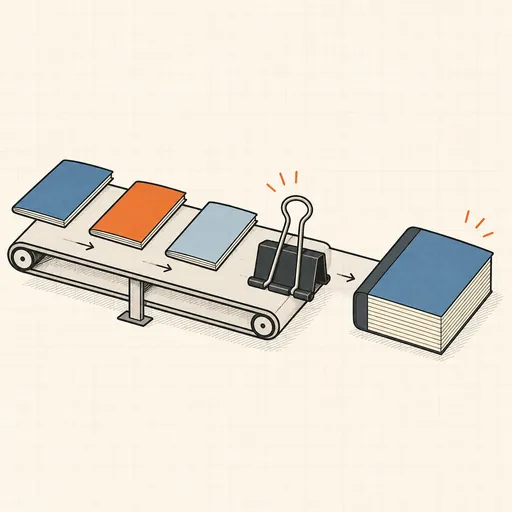
PDF Merger
Combine several PDFs into one, in the order you choose.
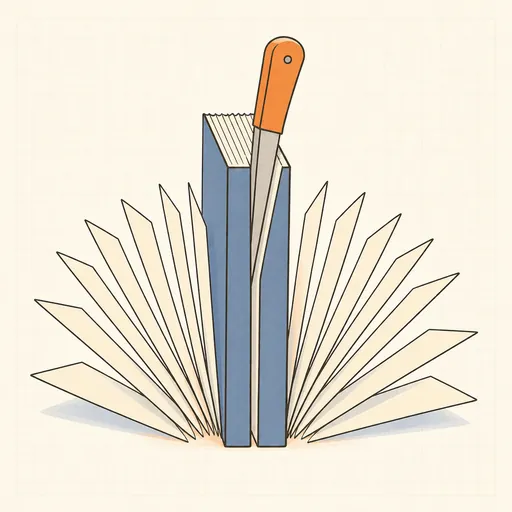
PDF Splitter
Split a PDF into single pages or custom ranges.
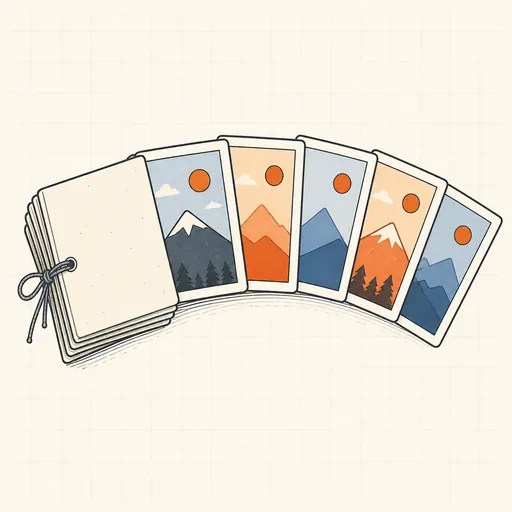
PDF → Images
Render PDF pages to PNG or JPEG, single or ZIP.
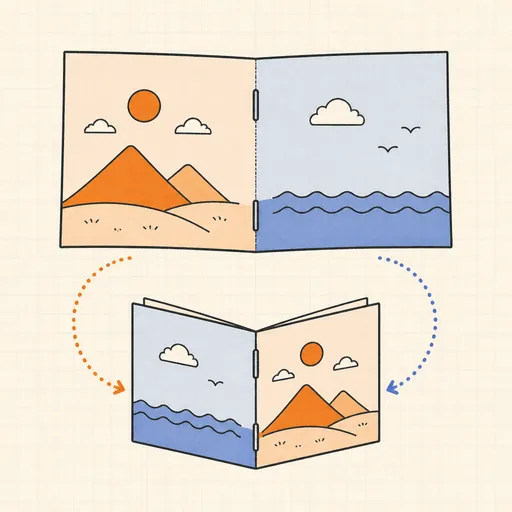
PDF Booklet Imposition
Reorder a PDF into fold-and-staple booklet spreads, 2-up for duplex printing.
PDF Compressor
Shrink a PDF by re-encoding its images in the browser.
PDF Metadata Viewer & Stripper
See and remove a PDF's hidden metadata.