Excel to CSV, Explained
After reading this you will understand what actually happens when an Excel workbook becomes a CSV file: how sheets, cell types, dates and formulas get flattened into plain text, and where that flattening can quietly corrupt your data.
What the conversion really does
An Excel workbook (.xlsx or .xls) is a container. Inside it holds multiple sheets, cell formatting, formulas, a shared string table, and number-format codes that decide whether 46215 is shown as a date or a plain number. A CSV file holds none of that. CSV is just rows of text, one line per row, with fields separated by a delimiter.
So the conversion is a projection from a rich structure down to flat text. Each cell becomes a string. A number like 3.14 becomes the three characters 3, ., 1, 4. A formula like =A2*B2 becomes its last computed value, exactly what the cell displayed. The tool at /data/excel-to-csv/ reads the workbook in your browser, lets you pick one sheet, and writes that sheet out as CSV.
One hook worth remembering: a single workbook with three sheets produces three separate CSV files, because CSV has no concept of a second sheet. You convert one sheet at a time.
When to use it, and when not to
Use CSV when the receiving program is picky, scriptable, or old. Database import tools, pandas.read_csv, R's read.csv, and command-line utilities all prefer CSV because it has no hidden state. What you see in the bytes is what you get.
Do not convert to CSV if you need to keep more than one sheet, cell colors, merged cells, comments, or live formulas. CSV drops all of those. If you need multiple typed columns and nested structure, a JSON export or a columnar format is a better fit than flat text.
CSV has no data types. Every field is text until the next program guesses a type. A ZIP code like 02139 survives in the CSV as 02139, but a spreadsheet that reopens the file may drop the leading zero and show 2139. The corruption happens on read, not on write.
The two things that need translation: dates and formulas
Numbers and text copy across without thought. Two cell types need real translation, and both are handled for you.
Excel stores a date as a serial number: the count of days since a fixed epoch. On Windows the epoch is 1899-12-30, so day 1 is 1899-12-31. To turn a serial number s into a date you add s days to that epoch:
Here s is the raw serial number stored in the cell, epoch is the fixed start date, and the result is a calendar date. The tool converts to ISO format (2026-07-13) so the text is unambiguous no matter what locale opens the file.
Check it: the serial number 46215 means 46215 days after 1899-12-30. That lands on 2026-07-13. Raw, the CSV would contain 46215, which no downstream tool would recognize as a date. Converted, it contains 2026-07-13, which every tool parses.
Formulas are simpler. Excel already stores the last computed result next to the formula text. The conversion writes that result, the same value the cell showed on screen. A cell with =SUM(B2:B4) displaying 150 becomes the text 150.
A worked example with the demo data
Load the sample workbook with the demo button. It is one sheet with a header row and three data rows, mixing text, a number, a date serial, and a formula.
From cells to CSV bytes
| Product | Price | Ordered | Total |
|---|---|---|---|
| Widget | 3.5 | 46215 | =B2*10 |
| Gadget | 12 | 46216 | =B3*10 |
| Gizmo, deluxe | 7.25 | 46217 | =B4*10 |
- Column
Orderedholds serial numbers with a date format.46215becomes2026-07-13,46216becomes2026-07-14,46217becomes2026-07-15. - Column
Totalholds formulas. The computed values are35,120, and72.5. The formulas themselves are discarded. - The value
Gizmo, deluxecontains a comma. Because the default delimiter is also a comma, that field must be wrapped in double quotes so the comma is not read as a field break. - Each row is joined with commas and ended with a line break.
The resulting CSV text is:
Product,Price,Ordered,Total
Widget,3.5,2026-07-13,35
Gadget,12,2026-07-14,120
"Gizmo, deluxe",7.25,2026-07-15,72.5
Notice three facts you can verify by eye. The formulas are gone, replaced by 35, 120, 72.5. The dates read as ISO strings. Only the field that contains a comma is quoted; the others are not.
How the delimiter changes the bytes
The delimiter is the single character that separates fields. Comma is the default, but tab and semicolon are common. The choice is not cosmetic: it decides which fields need quoting.
With a comma delimiter, Gizmo, deluxe needs quotes because it contains a comma. Switch to a tab delimiter and the same field needs no quotes, because it contains no tab. The number of quoted fields depends entirely on which delimiter collides with your data.
In much of Europe the comma is the decimal separator, so 3,5 means three and a half. Spreadsheets there default to a semicolon delimiter to avoid the clash. If a colleague's file opens as one column, try the semicolon delimiter before assuming the file is broken.
Try the delimiter yourself
Common mistakes that corrupt data
Most CSV damage comes from a downstream program guessing wrong, not from the conversion itself. Watch for these.
- Dropped leading zeros
- Codes like
00713are stored as text in Excel but reopened as the number713. The CSV holds the right bytes; the reopening tool discards them. Import as text to keep them. - Big numbers in scientific notation
- A 16-digit account number can reappear as
1.23457E+15. Excel converted it to a float and lost the last digits. Store such fields as text before you convert. - Encoding mismatch
- Names with accents (
café) turn intocaféwhen a UTF-8 file is read as a legacy 8-bit encoding. This tool writes UTF-8; open the result as UTF-8. - Mixed date interpretations
- If a column has some real dates and some plain numbers, only the dated cells convert. The plain numbers stay as numbers, so you can end up with
2026-07-13next to46220in the same column. Fix the formatting in Excel first.
Related tools
Once you have a CSV, you may want to do more with it. Open and clean it in the CSV Viewer & Editor to sort, filter, or pull out specific columns. Reshape it into nested records with the CSV ↔ JSON Converter. Mask names, emails, or IDs before sharing with the Data Anonymizer. If you are working with columnar files instead, the Parquet & Feather Preview reads those without Python.
Frequently asked questions
Why does my converted file lose the other sheets?
CSV represents a single table. A workbook with three sheets has no CSV equivalent, so you convert one sheet at a time and get one file each.
Where did my formulas go?
They are replaced by their last computed value, the exact number Excel showed in the cell. A cell with =B2*10 displaying 35 becomes 35. The formula text is not part of CSV.
Why did a date turn into a number like 46215?
That is the raw Excel serial number, the count of days since 1899-12-30. This tool converts such cells to ISO dates like 2026-07-13 so the meaning survives. If you see raw numbers, the cell was not date-formatted in Excel.
Is my file uploaded anywhere?
No. The workbook is read and converted entirely in your browser. Nothing is sent to a server.
Which delimiter should I pick?
Use comma for most English-language tools. Use semicolon if your data uses commas as decimal separators, and tab if your fields contain many commas and semicolons already.
Related tools
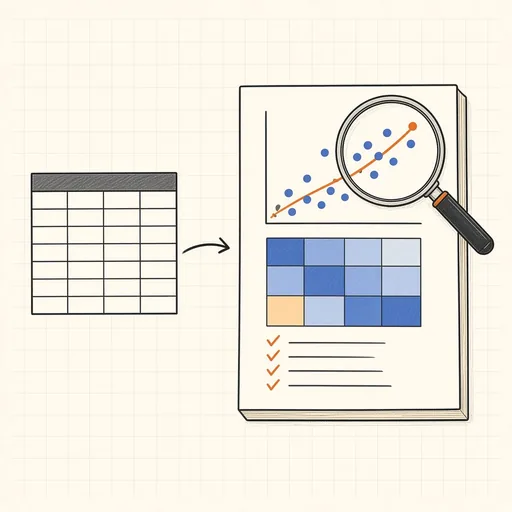
Auto Analyst: Instant Statistical Report
Drop a CSV or Excel file and get a statistician’s report: data problems, distributions, every real relationship, key drivers and Simpson’s paradox warnings, in plain English.

CSV Viewer & Editor
View, edit, sort, filter and extract columns from CSV files.
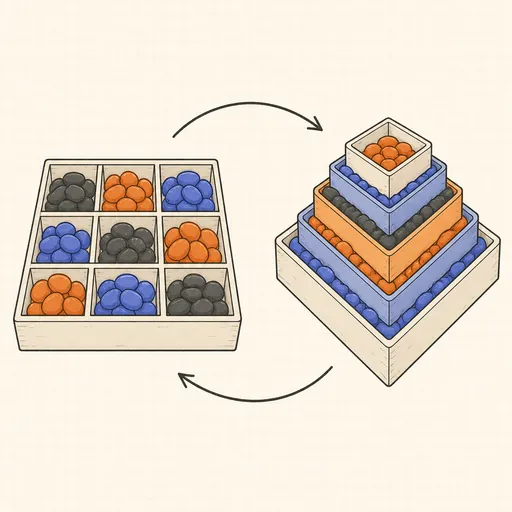
CSV ↔ JSON Converter
Convert CSV to JSON and JSON back to CSV.

Data Visualizer
29 chart types — heatmap, treemap, dumbbell, slope, candlestick — with rich styling and annotations.

JSON Table Viewer
Paste JSON, get a sortable, searchable table.

Markdown Table Generator
Paste spreadsheet data, get an aligned Markdown table.